
Files is where the coach shares documents with the team — everything here actually lives in Google Drive; connectFIRST just links to it and controls who can see it.
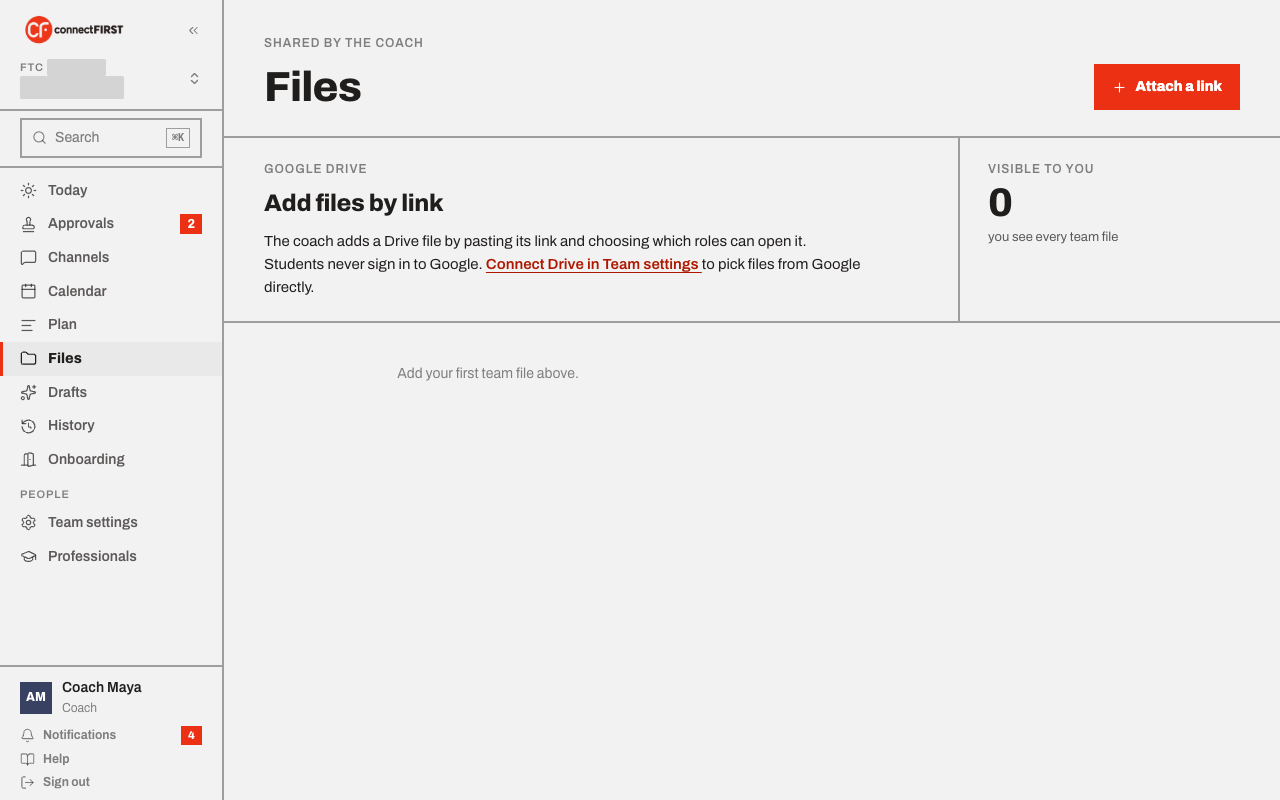
Before Drive is connected
Until a coach connects a Drive folder in Team settings, the only option is Attach a link — paste a link to a file that's already somewhere in Drive, and choose which roles can open it. That's the state shown above.
After connecting Drive
Once a coach picks a team folder (Team settings → Integrations), a real upload option appears too — drop a file in and it lands directly in that folder, shared automatically so anyone the coach allows can open it, including a student who has no Google account of their own. Students never sign in to Google at any point in this — the coach's own connection does the work.
If an upload or attach fails, the error says what to fix, and Team settings → Integrations has a Check Drive connection button that runs the same check and points at the missing piece.
Visibility
Every file carries the roles it's visible to, same as a work item. The Visible to you count on the right is exactly what it says — only the files your role can currently open.
Evidence on a work item is separate
A file attached to a specific piece of work — a CAD export, a photo of the finished part — is added from that work item itself as Evidence, not from this screen. Files is for documents that belong to the team generally, not to one task.