Plan is where your team's actual work lives — build tasks, paperwork, anything with an owner and a due date. A coach or student can add to it; everyone sees only the items they're allowed to see.
Add a work item
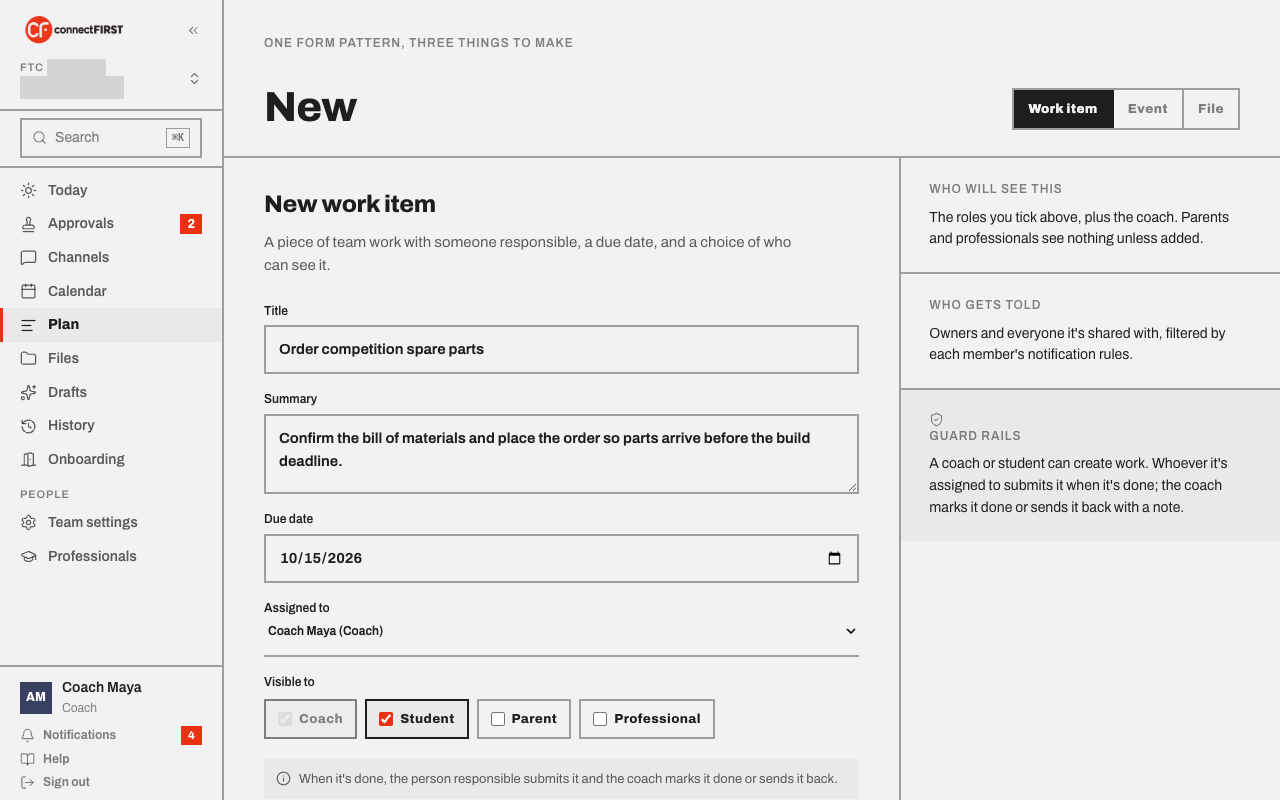
Click New work item at the top of Plan. Give it a title, a short summary of what "done" looks like, a due date, and who's responsible. The Visible to row controls who besides the coach can see it — a parent or mentor sees nothing unless you add their role.
The board
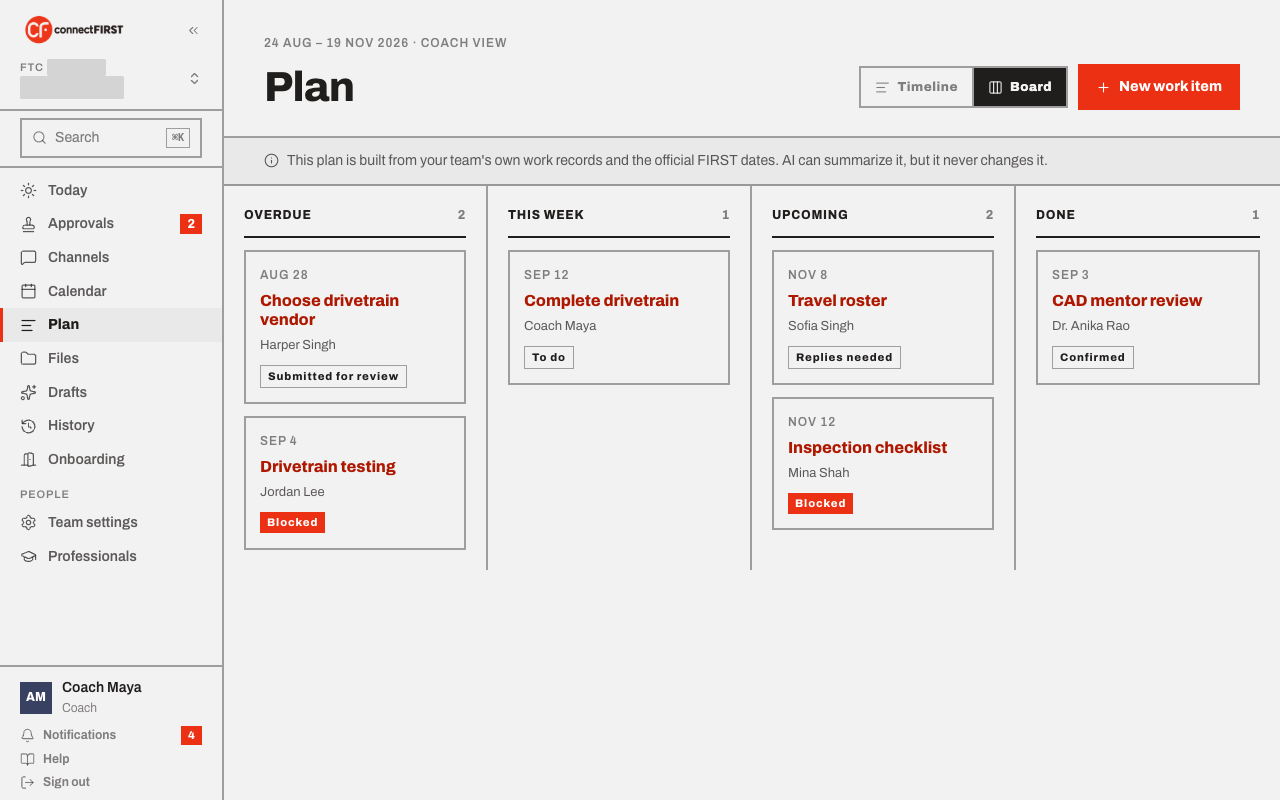
Switch to Board to see everything by status — Overdue, This week, Upcoming, Done. Each card shows who owns it and its due date; open one to see the full detail, dependencies, and evidence.
Timeline shows the same work items laid out against the calendar instead, alongside the team's official FIRST dates.
A work item's life
Every item moves through the same track:
- To do — created, waiting on the owner.
- In progress — the owner clicked Start.
- Submitted for review — the owner wrote a note on what's finished (and pasted links to the evidence — a doc, a CAD file, a photo) and sent it to the coach.
- Done — the coach marked it done, or sent it back with a note if it's not there yet.
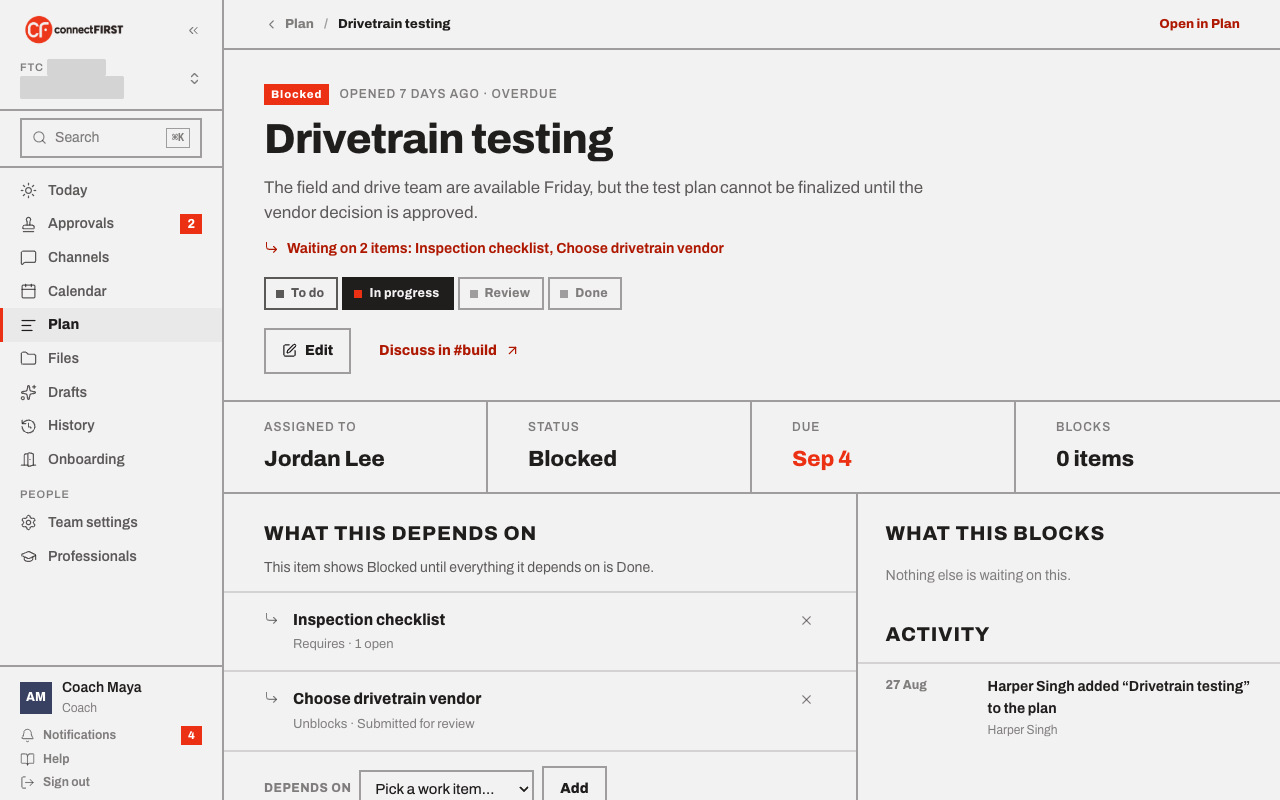
A submitted item lands on the coach's Approvals list — that's the only place decisions get made, so nothing gets marked done by accident.
It only reflects what's actually there
The note at the top of Plan is literal: this is your team's own work records plus FIRST's official dates. The AI assistant can summarize the plan for you, but it never edits or reprioritizes it — every change comes from a person.